Stock Analysis
Core Concept
Using Stock Analysis
About the Stock ABC Usage Generation Window
The value of the Number Of Months To Retrieve Data From field determines the number of whole months to use when calculating ABC values. For example, if today is December 15, 2012, and you specified three months, usage from September 15, 2012, to December 15, 2012 is included in the analysis.
The value of the Use Recorded Cost option determines whether actual cost on the Part Transactions screen is used in the analysis instead of the current part cost.
About the Stock Min/Max Generation Window
The value of the Months to Average field determines the number of months plus the days in the current month to use when calculating an average.
About the Stock Count Generation Window
The Stock Count Generation window appears when you click New on the Stock Count screen. It enables you to enter criteria for the stock count generation process.
Header
- Cancel—used to cancel the stock count generation
- Clear—used to clear the header fields
- Save—used to save the information and start stock count generation
Field Label |
Description |
| Count Cutoff Date | This field, in combination with the cycle count period, determines whether enough time has passed so that the specified stock can be counted again. |
| Lines for Serials | Identifies the number of ruled lines that appear on the Stock Count Sheet for the recording of serial numbers. Ruled lines only appear for serialized parts. |
| Lines Per Page | Identifies the number of parts that appear on each page of the Stock Count Sheet. |
| Place ID | Identifies for which place a stock count is generated. We recommend you specify at minimum a place ID or the stock count is generated for your entire organization. |
| Sort Order | Indicates whether parts appear on the Stock Count Sheet by part ID or by bin ID. |
Parts
You can enter parts on this tab if you want to constrain the count to specific parts.
- New—used to add parts to the constraint
- Delete—used to delete parts from the constraint
- Select—used to search for and select parts to add to the constraint
Lots
You can enter lots on this tab if you want to constrain the count to specific lots.
- New—used to add lots to the constraint
- Delete—used to delete lots from the constraint
- Select—used to search for and select lots to add to the constraint
About the Stock Count Screen
The Stock Count screen contains the stock count records that were generated using the criteria specified on the Stock Count Generation window. Each stock count record contains the information that appears on one page of the Stock Count Sheet report.
Header
- New—used to generate a new stock count run
- Delete Run—used to delete all stock count records for this run
- Save—used to shave changes on the stock count record
- Variance—used to create the variance when all of the part counts have been entered for this stock count record
- Post Run—used to post the stock count run when all parts have been counted and entered into their stock count records
Field Label |
Description |
| Counted Date/Time | Identifies when the count was performed. It is used when accounting for transactions that occur between the date and time the stock was counted and when the counts are entered into FSM. This value is used as a default for lines. |
| Counted By | Identifies the person who did the count. It can be a person ID or any name not entered in FSM. This value is used as a default forlines. |
Lines
- New—used to add another combination of part, location, and bin to the stock count record
Field Label |
Description |
| USABLE | Identifies the number of usable items that have been counted, transferred from the stock count sheet. |
| UNUSABLE | Identifies the number of unusable items that have been counted, transferred from the stock count sheet. |
| COUNTED DATE/ TIME | Identifies when the count was performed. It is used when accounting for transactions that occur between the date and time the stock was counted and when the counts are entered into FSM. This value defaults from the header. |
| COUNTED BY | Identifies the person who performed the count. This value is used as a default for lines. This value defaults from the header. |
Serials and Lots
FSM validates that the quantity of serial IDs and lots entered matches the number of items counted.
- New—used to add a new serialized, lot‐identified part to the stock count
- Delete—used to delete a serialized, lot identified part from the stock count
Field Label |
Description |
| SERIAL ID | Identifies a part you counted. |
| LOT ID | Identifies the lot for a part you counted. |
| USABLE | Indicates whether the counted part is usable stock. |
About the Stock Count Exception Screen
This screen is used to view exceptions in generating stock counts. For example, if you have generated a stock count for stock in a specified bin, you cannot generate another stock count until the previous count is posted.
About the Stock Count Errors Screen
This screen is used to view errors in generating stock counts. As you correct each error, you can delete the error record until all errors are corrected and no error records remain.
About Stock Count Reports
Because the Stock Count screen is specifically designed for easy entry of information from stock count receipts, the easiest way for you to monitor your stock count is by using stock count reports.
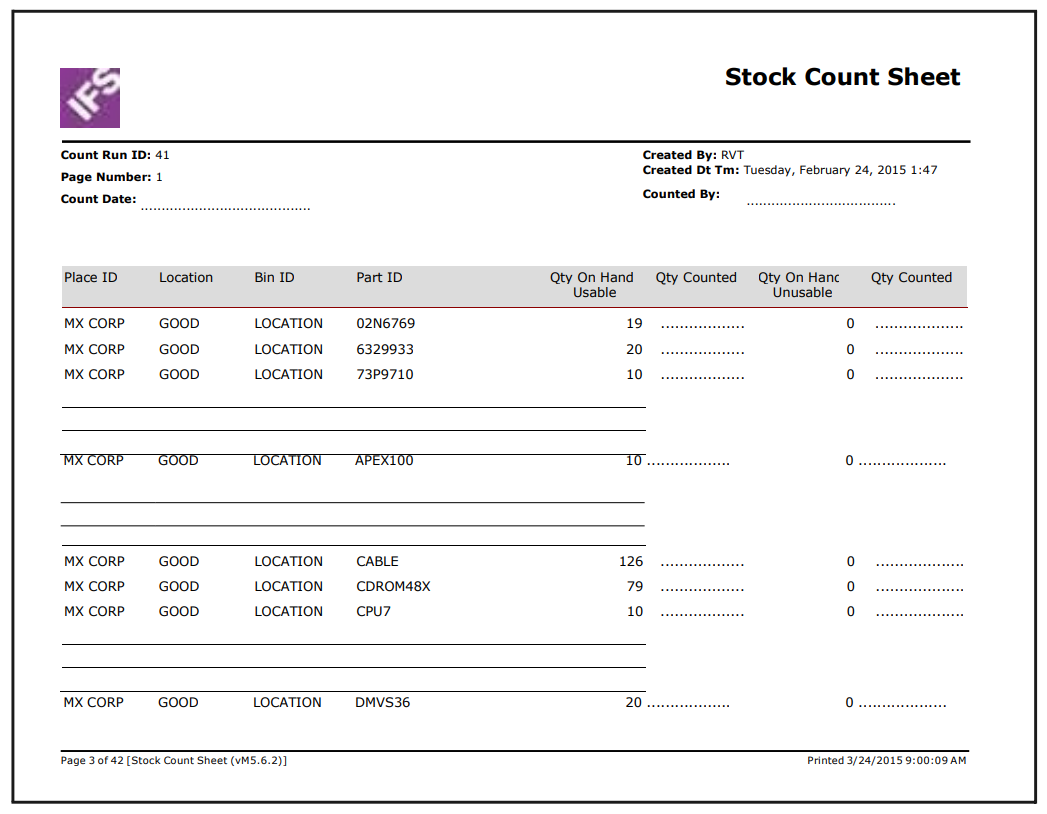
Stock Count Sheet
This report is used to record stock counts. It always breaks by place and location. It is sorted by either part ID or bin ID, depending on the parameter selection when the stock count run is generated.
The following example of a stock count sheet shows parts to count and ruled lines for recording serial information for part APX001.
Stock Count Error
This report is used to view errors in posting stock count information. For example, when you post a stock count, FSM validates that a serial ID is not entered more than once. If it is, it appears on this report.
Stock Count Exception
This report is used to view exceptions in generating stock counts. For example, if you have generated a stock count for stock in a specified bin, you cannot generate another stock count until the previous count is posted.
Stock Count Variance Summary
This report is used to view variance summaries by place and location.
Stock Count Variance Detail
This report is used to view variance details for each part by location and bin.
Stock ABC Analysis Procedure
- Using the Stock ABC Usage Generation window, enter the number of months to analyze.
- If you want to perform analysis by location and bin, enter the appropriate fields.
- Select whether to use recorded costs instead of standard costs.
- Using the remaining fields, enter the ABC percentage values.
- Click Save.
- View the results and, if necessary, adjust any of the assigned ABC values.
- Post the run.
Stock Min/Max Analysis Procedure
- Using the Stock Min/Max Generation window, enter the number of months to analyze.
- Using the remaining fields, enter your filter criteria.
- View the results and, if necessary, adjust any of the assigned minimum and maximum values.
- Post the run.
Stock Count Procedure
Generate the stock count
- Using the Stock Count screen, create a new stock count run.
- On the Stock Count Generation window, enter the criteria to select the stock you want to count. Use at least a place as a criterion or you will generate a stock count run for your entire organization.
- Record the stock count run number for later use.
Count the items in stock
- Print Stock Count Sheet reports and give them to the people who are counting stock.
- As stock is counted, record the quantities on stock count sheets.
- For stock you find that is not on the stock count sheet, record the appropriate information.
Enter the stock counts
- Using the Stock Count screen, for each page, record the quantity information and the counted date and time.
- If the stock is serialized, select the appropriate line and enter the serial numbers.
- For stock that was found but not on the stock count sheet, click New and enter the appropriate information. You can use an alternate method to perform this task: export the stock_count table, enter quantities, counted date and time, and counted by into the spreadsheet, and re‐import the stock_count table.
Create the variances
- After all information is entered for the stock count, click Variance.
Correct the variances
- Print the Stock Count Variance Summary report and determine which counts have a variance.
- Print the Stock Count Variance Detail report for the variances identified in the previous step.
- Re‐count the stock or otherwise determine whether adjustments to the stock count are necessary.
- After any corrections are entered, click Variance to recalculate the remaining variances.
Post the stock count
- Once all information for the stock count run is entered, click Post Run.Any remaining variances are applied to on‐hand quantities.
Verify Variances
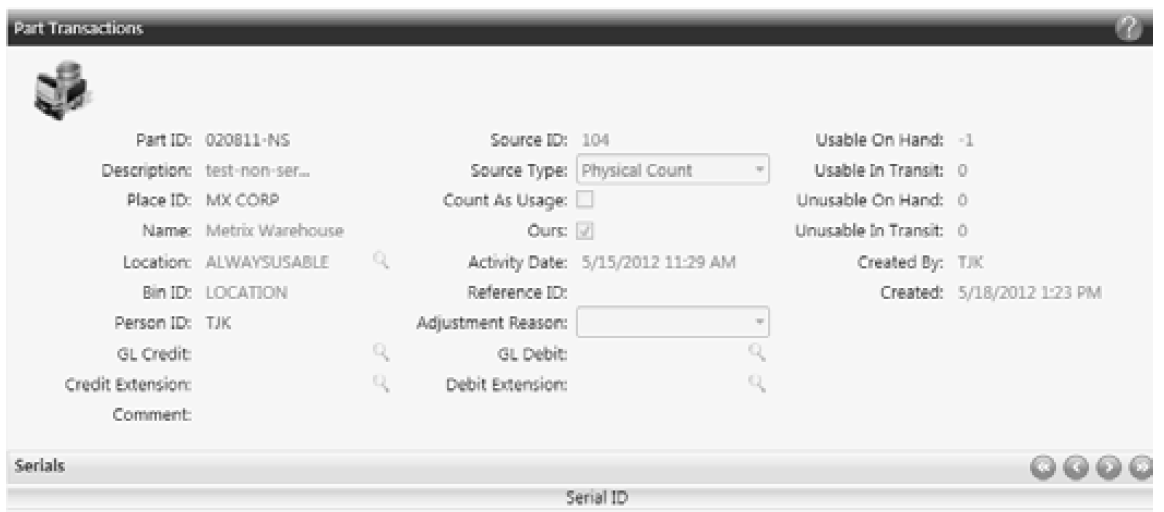
- If you want to verify the variances that were posted, view the Part Transactions screen. Enter the stock count run ID in the Source ID field to search on your stock count.